Videosec
Products
Videosec
  • Products
    • CCTV Cameras
    • Video IP Intercom
    • CCTV Accessories
    • CCTV Recorders
    • Smart Home Solutions
    • LED Lights & Lighting
    • Track Lighting Systems 230V
    • Track Lighting Systems 48V
    • LED Strip Lighting
    • Shopping Mall Lighting
  • Reactivate Your Account
  • About us
    • Introduction
    • Purchase options
    • B2B Partnership
  • Support
    • Downloads
      • Softwares
    • Catalog
      • IP CCTV Catalog
      • Smart Building Catalog
      • Smart Lighting Catalog
    • Knowledge
    • Frequent questions
    • Service
    • Forgot password
    • Kinetic Roadmap 2026
    • CCTV Roadmap 2026
      • CCTV Roadmap 2026 Q1
      • CCTV Roadmap 2026 Q2
  • News
  • Video library
  • B2B Login
  • Contact Us
  • Expert Tips
    • VIDEOSEC PRO TIPS
    • LEDsec PRO TIPS
  1. VIDEOSEC PRO TIPS
  1. Expert Tips
  2. VIDEOSEC PRO TIPS
  3. New IQ2 Firmware 2026-07-21

New IQ2 Firmware 2026-07-21

IQ2 Firmware Update
VIDEOSEC PRO TIPS

IQ2 Firmware Update via Cloud

The firmware of Videosec IQ2 Series recorders can be updated directly from the Cloud. There is no need to download firmware files or use a USB storage device.

Before You Start

• Make sure the recorder has an active Internet connection.

• Do not power off or disconnect the recorder during the update process.

• After the update is completed, the recorder may restart automatically.

Update via the Mobile Application

The latest firmware can be checked and installed in just a few steps using the Videosec Control Panel mobile application.

Step 1

Select the IQ2 Recorder

Open the Videosec Control Panel application and select the IQ2 recorder you want to update from the device list.
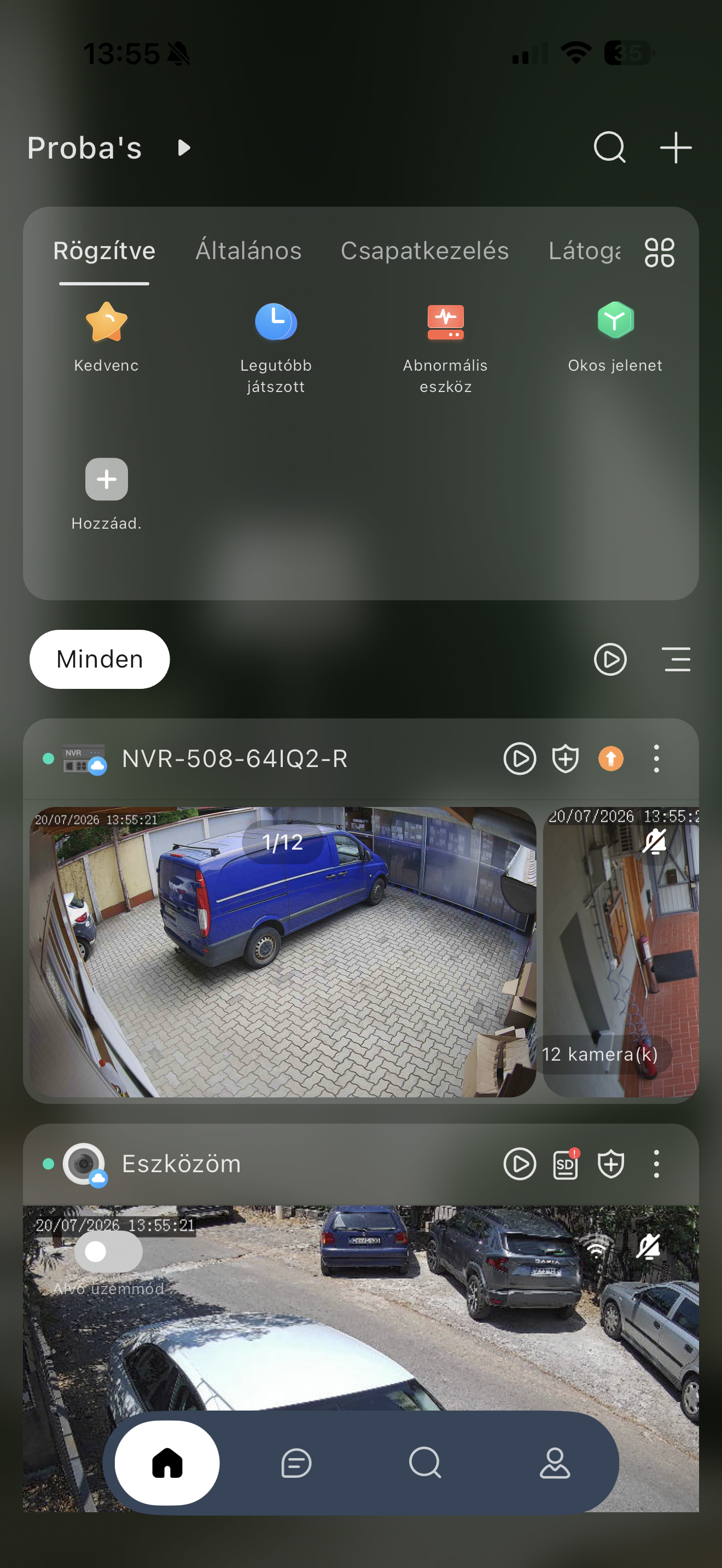
Selecting an IQ2 recorder in the Videosec Control Panel application
Step 2

Check the Available Firmware Version

Open the Version Information page. The application displays both the current firmware version and the latest available version. If a new firmware version is available, tap the Update button.
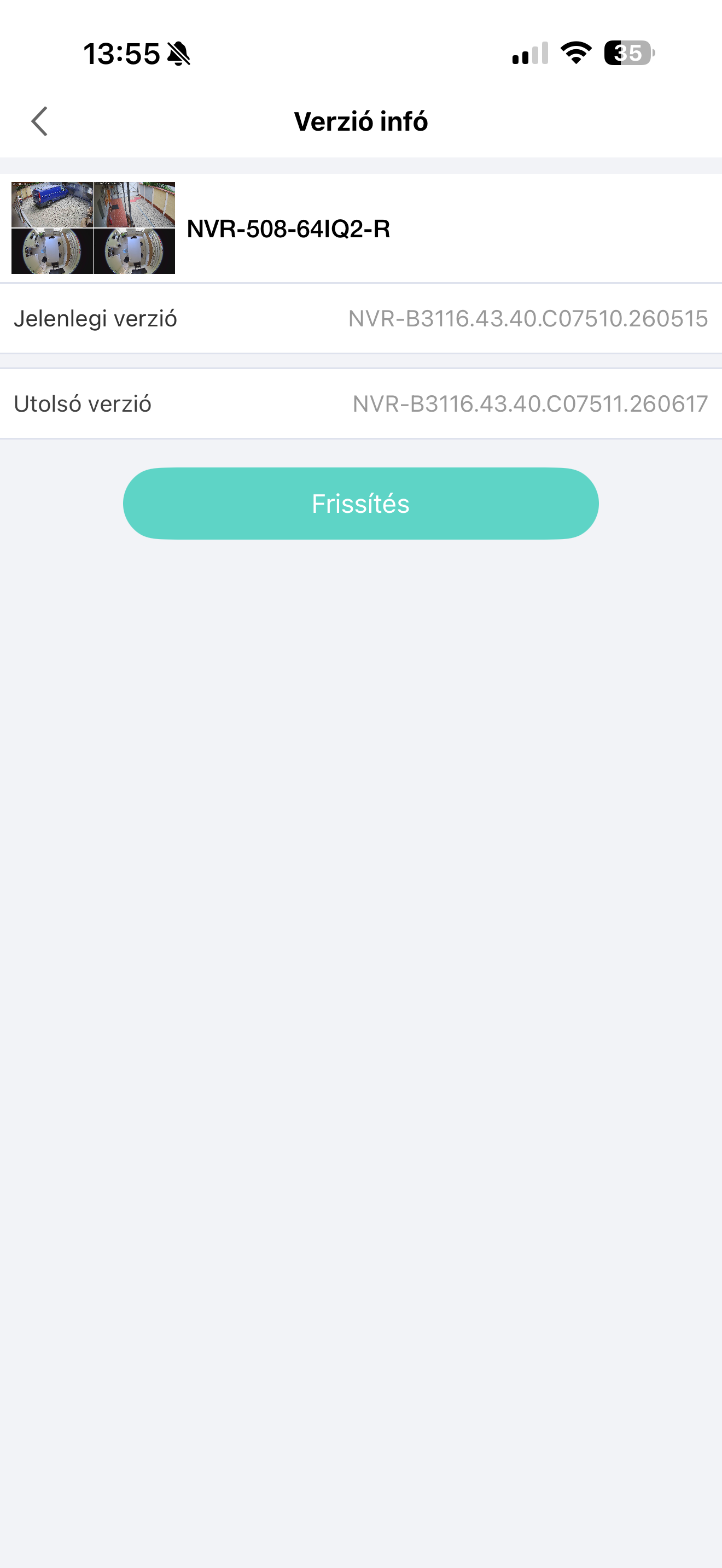
Checking the IQ2 firmware version in the mobile application

Update via the Recorder's Web Interface

Cloud firmware updates can also be started from the recorder's local web interface.

Step 3

Open the NVR Update Menu

Log in to the recorder's web interface, then open the NVR Update menu.

Settings → Update → NVR Update
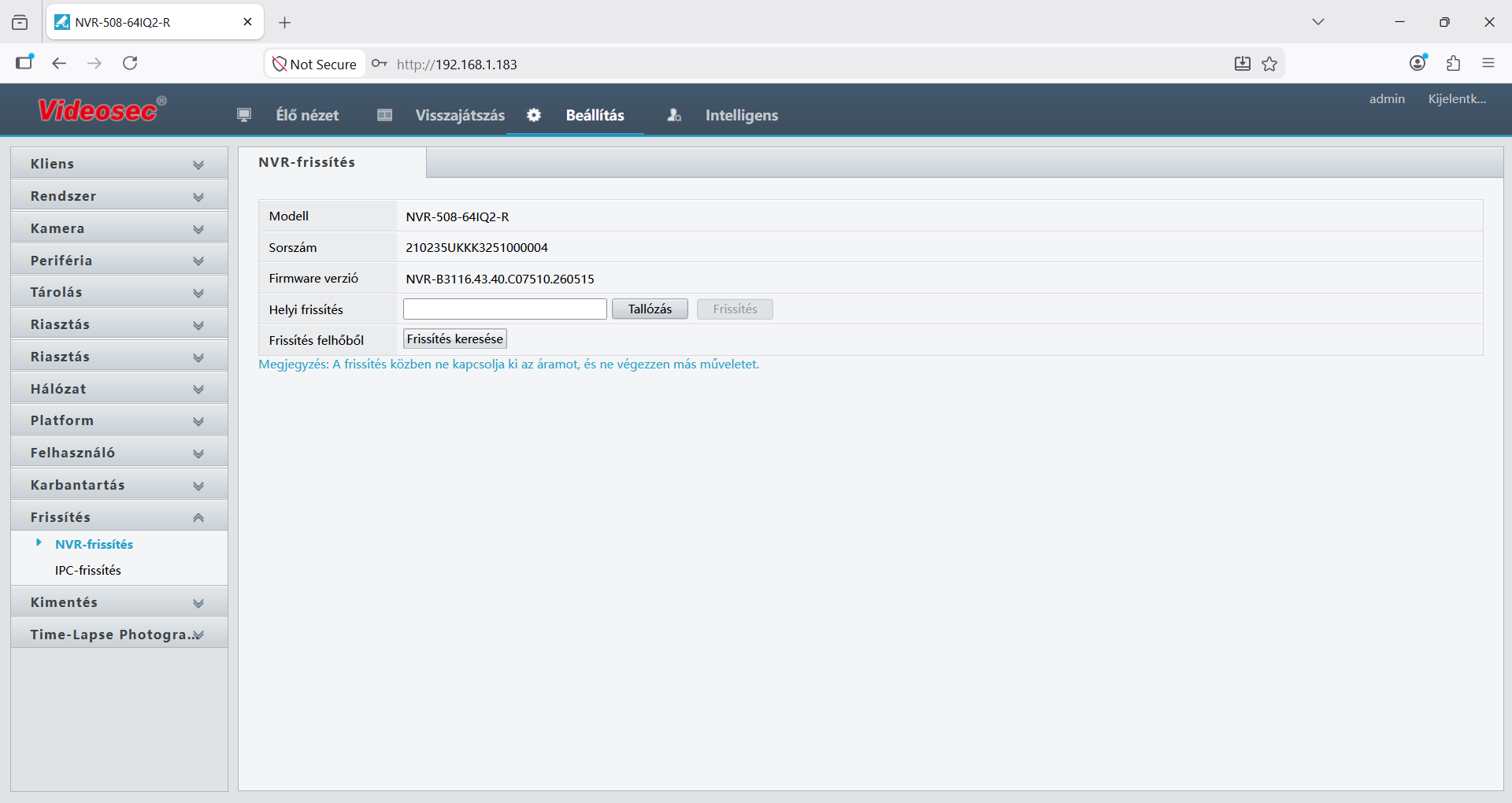
IQ2 NVR Update menu
Step 4

Start the Cloud Update

Click the Check for Updates button. If a newer firmware version is available, the system will display both the current and the latest version. Click Update to start the upgrade process.
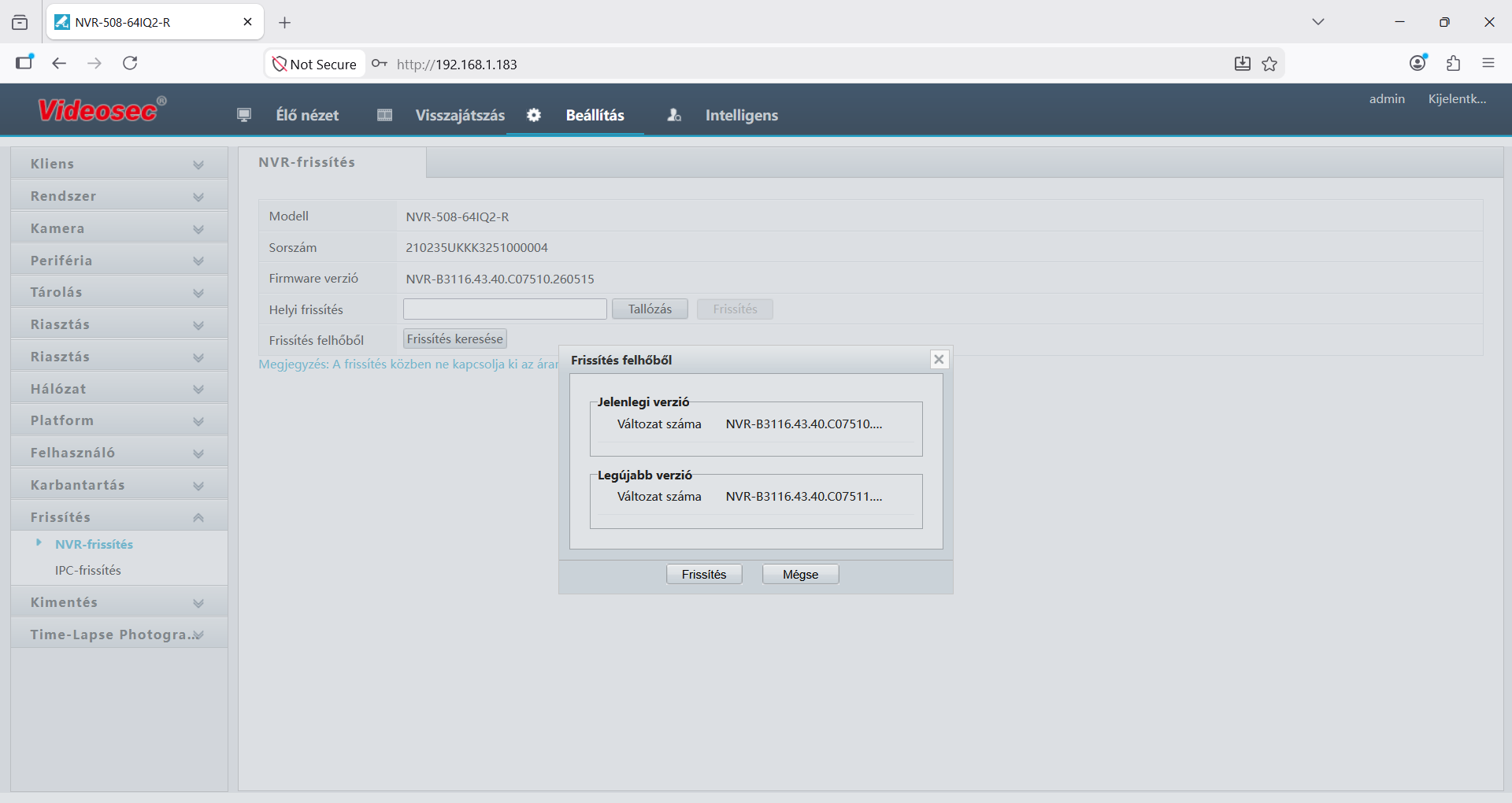
Confirming the IQ2 firmware update

Good to Know

Cloud Update automatically offers the correct firmware version for your recorder, so there is no need to manually select or download firmware files.

Important!

Do not switch off the recorder, disconnect its power supply, or perform any other operations on the device while the firmware update is in progress.


Customer account
  • Sign In
  • Sign Up
  • My Profile
  • Cart
  • My Favorites
Information
  • Terms and Conditions
  • Privacy Policy
  • Payment
  • Shipping
  • Contact details
Euro Tech Corporation Kft.
  • Üstökös u. 12/B, Szeged, 6724
  • +3662458585
  • webmessage@videosec.com
  • facebook

  • youtube

  • linkedin

  • tiktok

Subscribe to our Newsletter!

DON'T MISS OUT
ON OUR OFFERS!

We’ll only send you the most important news and discounts, no unnecessary messages!

Subscribe
Made by: webmentor.hu
barion_com
pastpay_com
  • CCTV Cameras
  • Video IP Intercom
  • CCTV Accessories
  • CCTV Recorders
  • Smart Home Solutions
  • LED Lights & Lighting
  • Track Lighting Systems 230V
  • Track Lighting Systems 48V
  • LED Strip Lighting
  • Shopping Mall Lighting
  • Reactivate Your Account
  • About us
    About us
    • Introduction
    • Purchase options
    • B2B Partnership
  • Support
    Support
    • Downloads
      Downloads
      • Softwares
    • Catalog
      Catalog
      • IP CCTV Catalog
      • Smart Building Catalog
      • Smart Lighting Catalog
    • Knowledge
    • Frequent questions
    • Service
    • Forgot password
    • Kinetic Roadmap 2026
    • CCTV Roadmap 2026
      CCTV Roadmap 2026
      • CCTV Roadmap 2026 Q1
      • CCTV Roadmap 2026 Q2
  • News
  • Video library
  • B2B Login
  • Contact Us
  • Expert Tips
    Expert Tips
    • VIDEOSEC PRO TIPS
    • LEDsec PRO TIPS
Change language
  • hu
  • en
Change currency
Sign in
Sign Up
Privacy settings
Our website uses cookies necessary for basic functionality. You can allow additional cookies for broader features (marketing, analytics, personalization). For more details, see our Privacy Policy in the Privacy Notice.
Essential cookies are crucial for the basic functions of the website, and the website will not work properly without them. These cookies do not store any personally identifiable data.
We use marketing cookies to track visitors' website activity. The goal is to display relevant ads to individual users (e.g. Google Ads, Facebook Ads) and encourage their engagement, which makes our website even more valuable.
Through the collection and reporting of data in an anonymous form, statistical cookies help the website owner understand how visitors interact with the website.
Personalization cookies allow us to remember information that changes the way the website behaves or looks.